























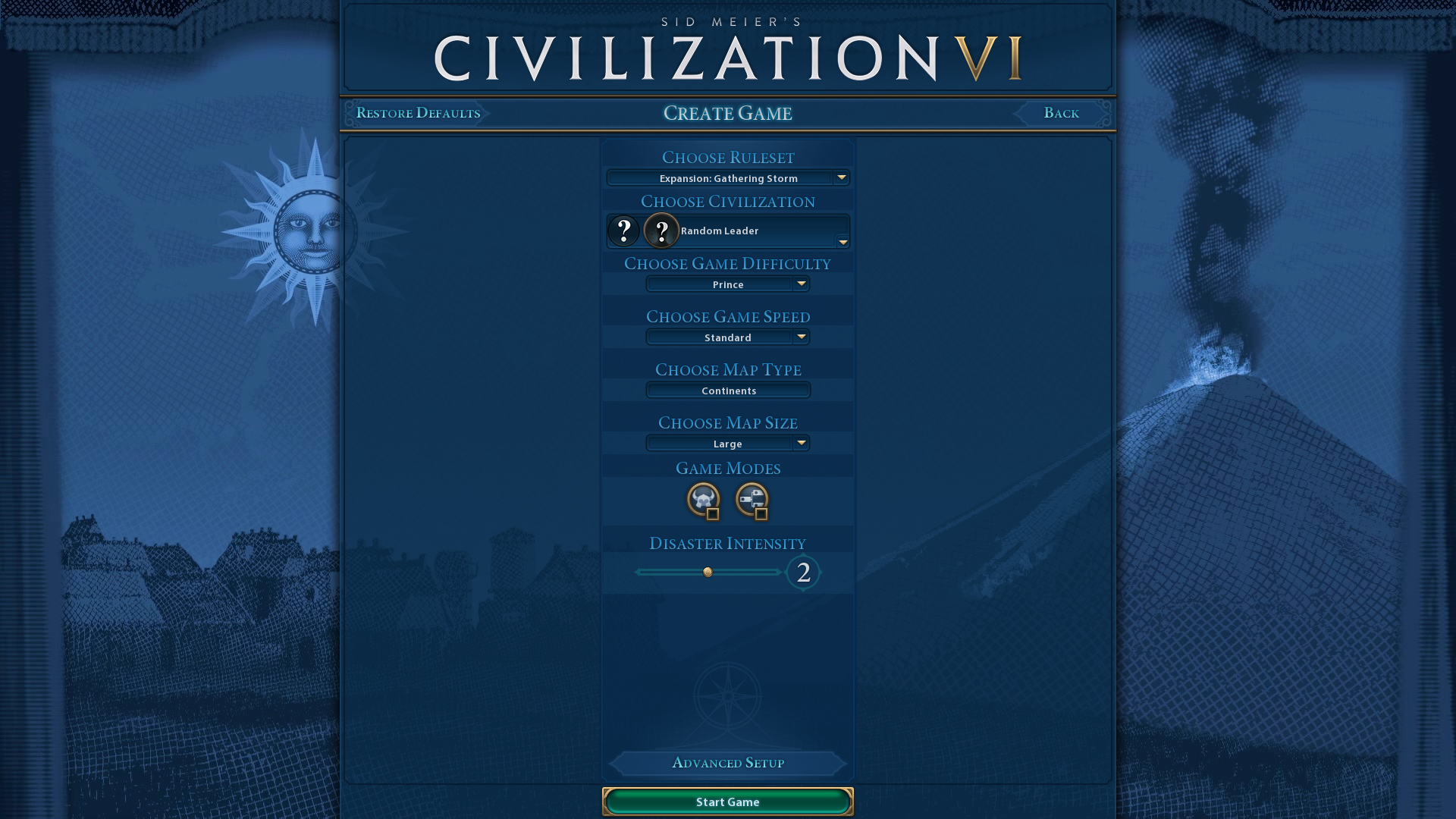

Civilization 6 maps can directly impact your Civ 6 games in numerous ways. The size, terrain, natural wonders, and city-states on maps can affect the pace, strategic focus, and conflicts of your Civilization 6 games and the resources and bonuses available on them. By default, the Civilization 6 map is set to middle-ground standard settings. However, there are numerous ways you can customize the map to better suit your civilization and target victory path before starting a game. This is how you can set up Civilization 6 maps to suit your game plan and selected leader.
Select a Basic Map Type
First, select a basic map type that suits your selected civilization. If you’ve selected to play with a more a coastal/naval-oriented civilization, such as England, Maori, Indonesia, Phoenicia, Japan, or Norway, choose a map that offers more water-based and coastal gameplay. Civilization 6 maps such as Archipelago, Island Plates, Continents and Islands, and Fractal are better for coastal civilizations. Those maps with larger landmasses, such as Pangaea and the Continents, are better for more land-based civilizations like Germany and Russia.
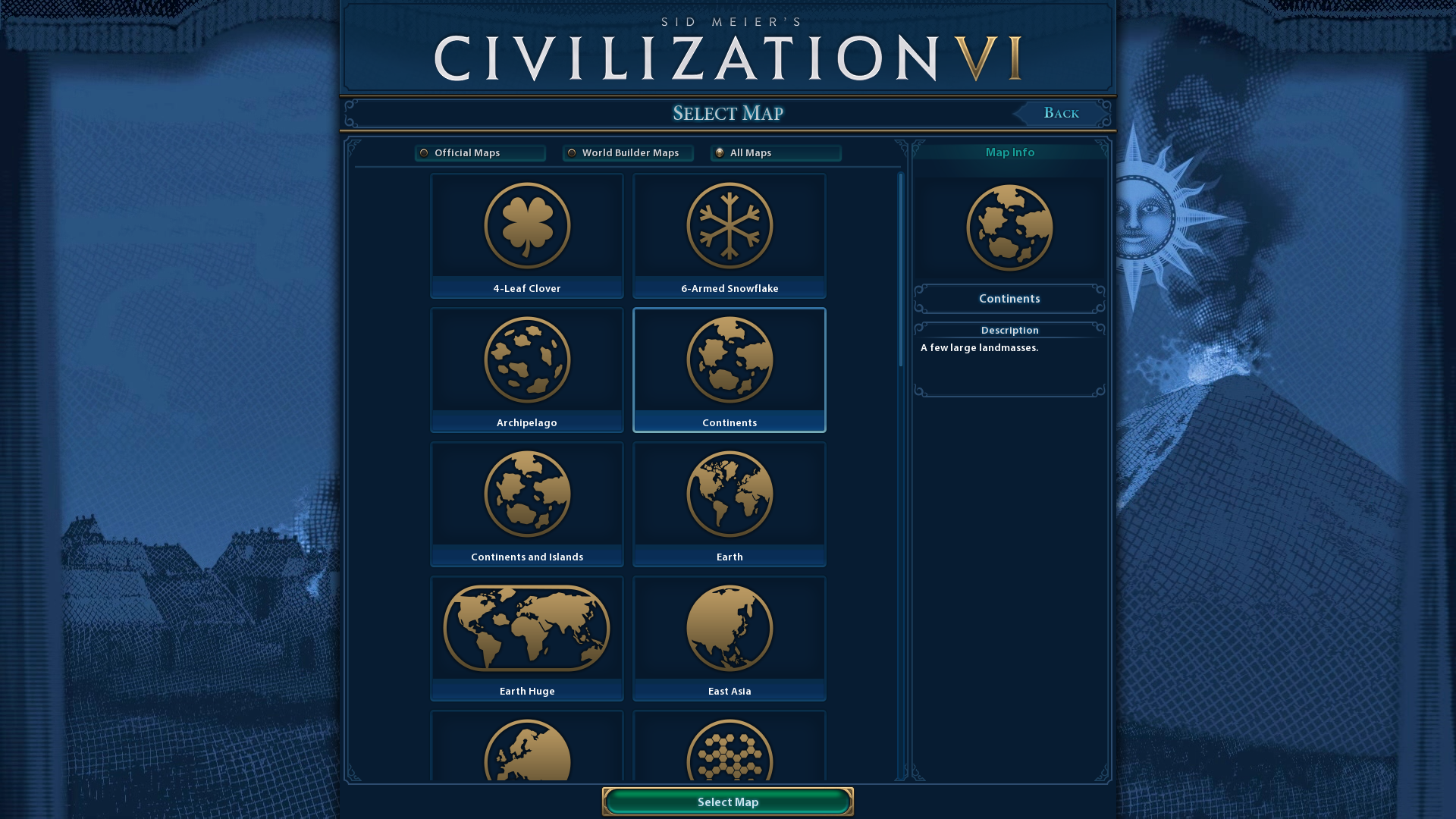
The Significance of Map Size
Next, select a map size that’s better for your target victory condition. If you’re playing for a domination or religion victory, select the Small option. Smaller maps make it easier to secure a domination or religion victory because they include fewer countries for you to conquer or convert.
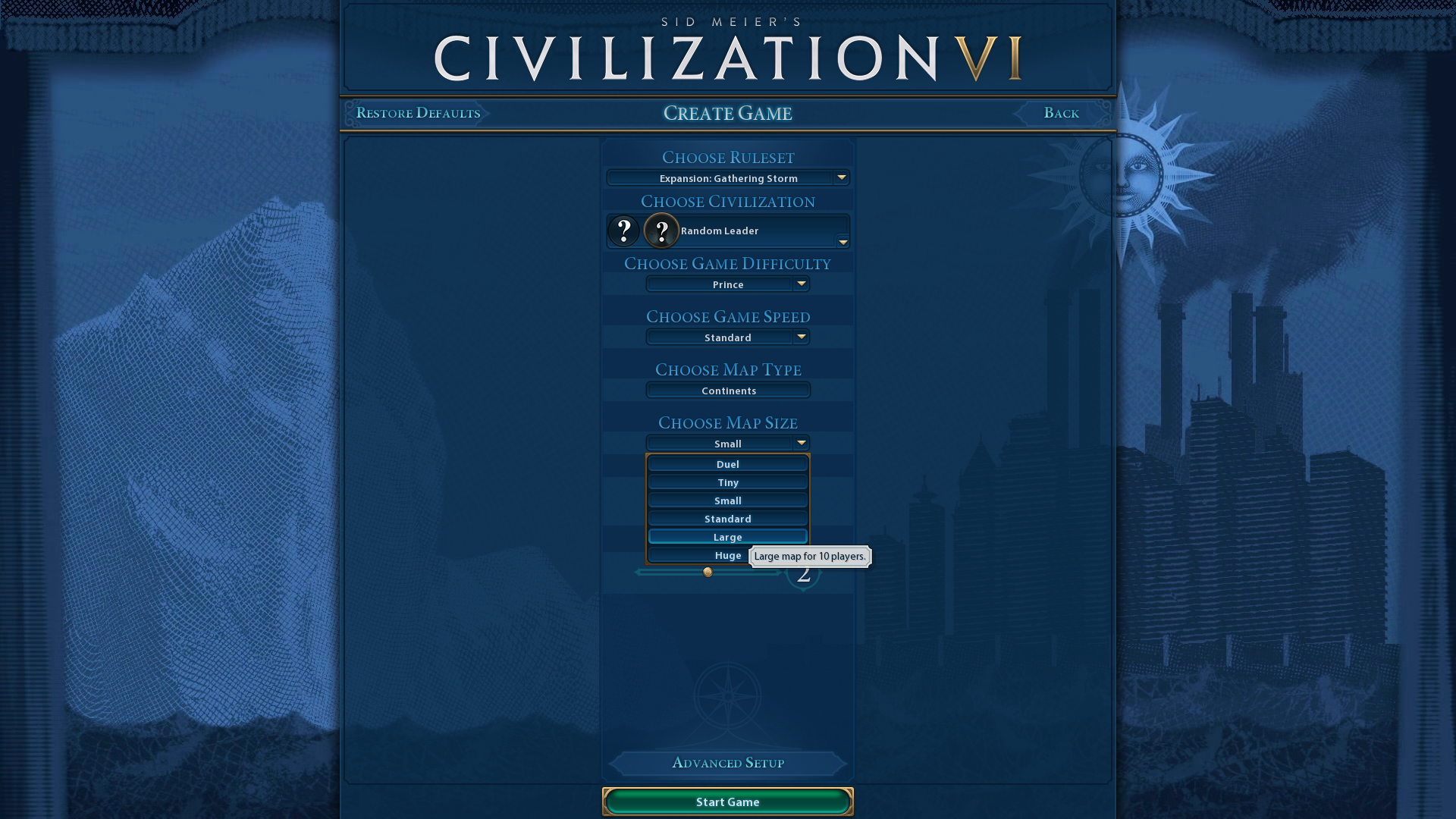
Those players aiming for scientific or cultural victories should select the Large, or even Huge, map options. Larger maps are better for those victory conditions because they provide more space for establishing bigger empires with peaceful expansion. Then, you can establish more cities for the sake of increasing scientific and cultural output without fighting wars.
Configure the Climate to Suit Your Civilization
If you look beyond the basic map options, you can configure the climates for Civilization 6 maps via advanced settings. To do so, click the Advanced Settings button when configuring a game map. The Temperature and Rainfall settings there enable you to adjust the climate to suit your civilization.
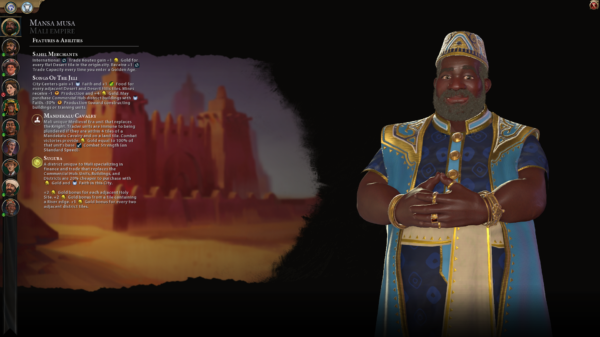
For example, it’s best to make the map as warm and dry as possible when you select to play as a desert civilization, such as Nubia, Egypt, Arabia, and Mali. To do that, change the Temperature setting to Hot and select Arid for Rainfall. Then, there will be more desert terrain on the map for your civilization.
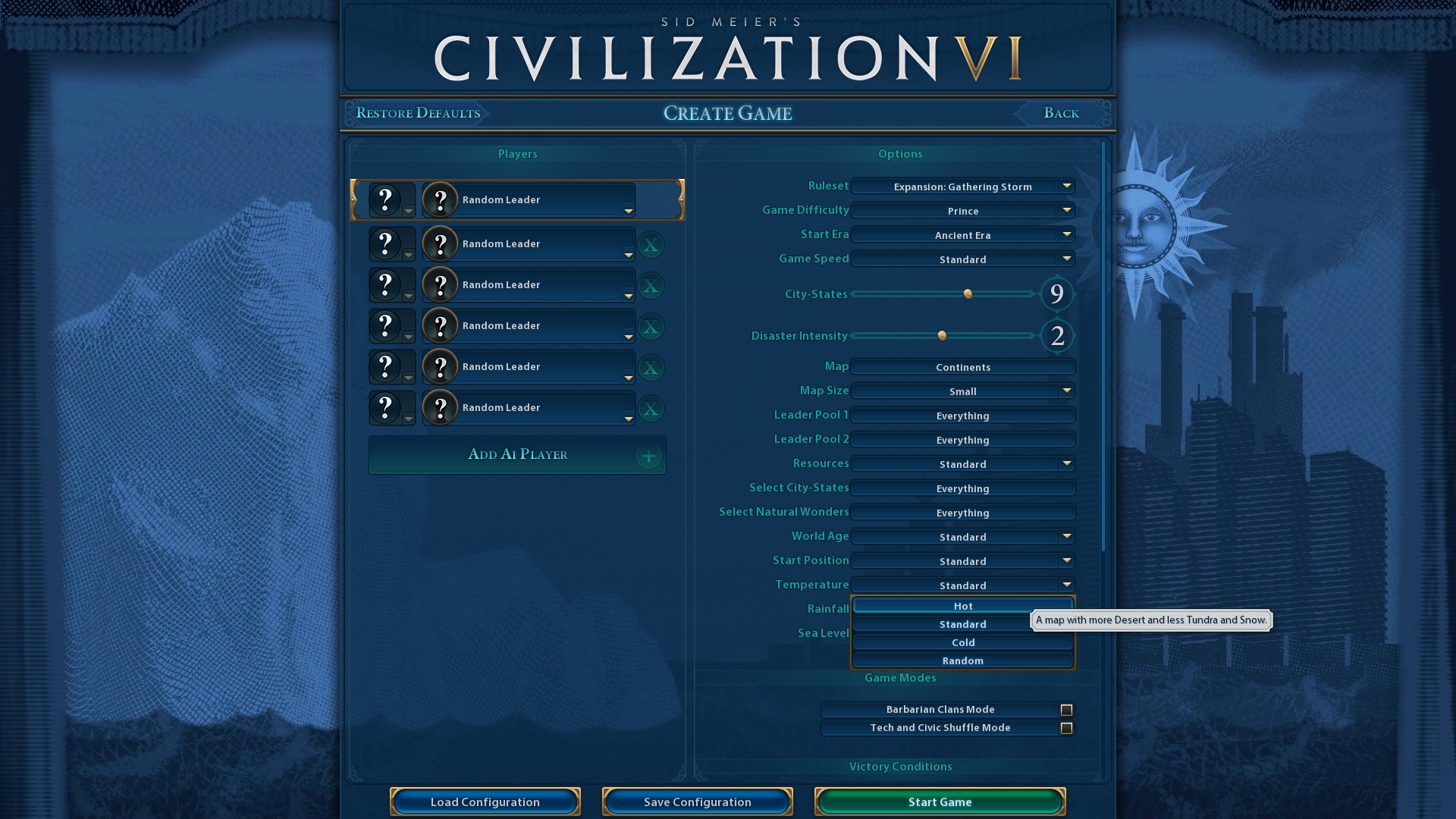
If you’ve selected a civilization that benefits more from tundra and snow (such as Russia and Canada), make the map’s climate colder. To do, select Cold for the Temperature setting. Selecting Wet for Rainfall will increase the number of trees on the map for a colder climate. Wet is generally better for scientific victories because you can boost city production by adding lumber mills to trees.
Brazil and the Kongolese are also two civilizations that directly benefit from wetter and hotter climates. For example, the Brazilian Amazon civ ability provides a district adjacency bonus for jungle terrain. To increase the jungle tiles for Brazil and Kongo, select a Wet Rainfall option and a Hot Temperature setting.
Change the Amount of Water, Hills, and Mountains
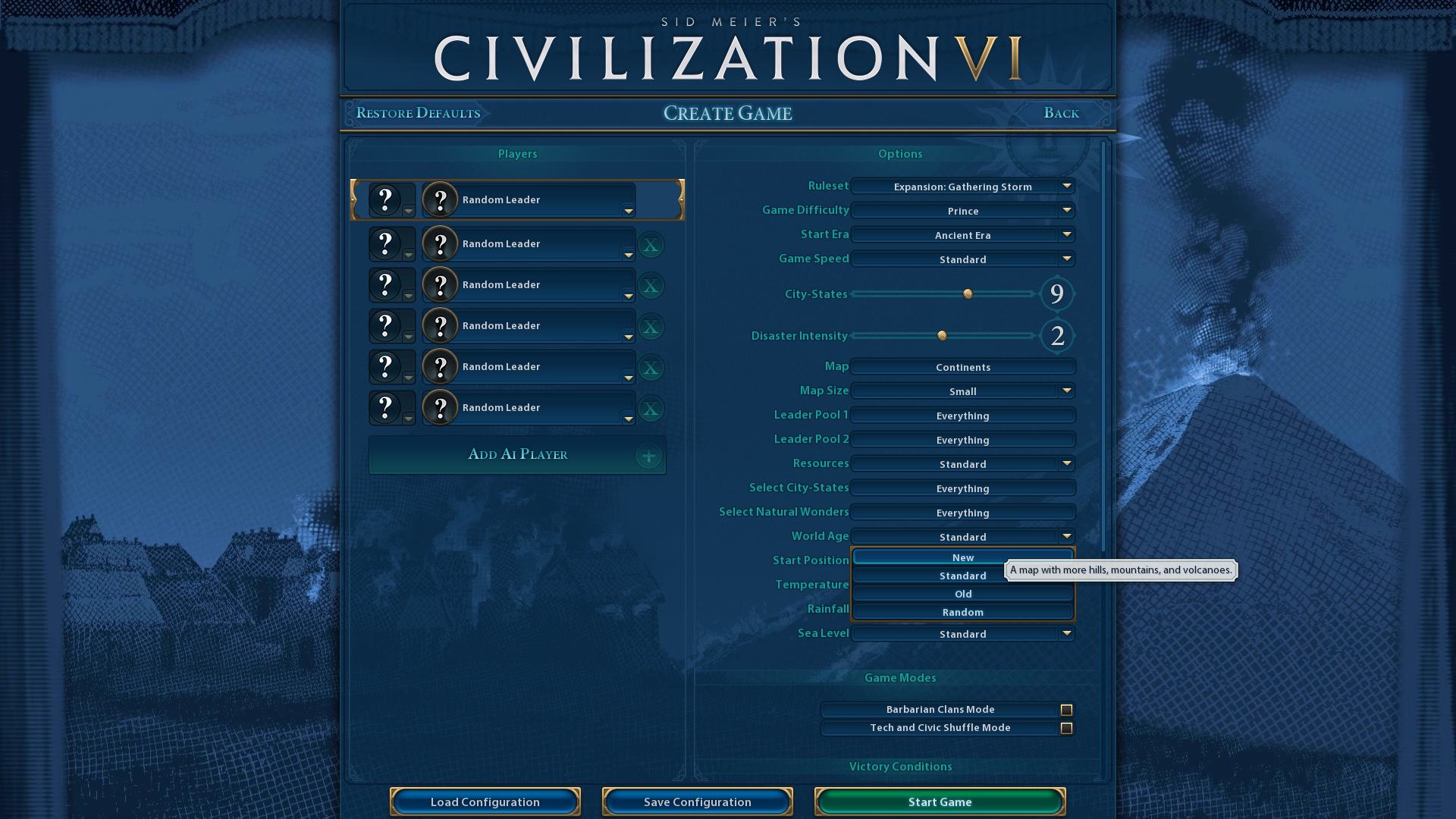
If the civilization you choose benefits from more mountains, then you should change the World Age setting. Inca and Korea are two civilizations for which you should set the map to have more maps and hills. To do so, select New for the World Age setting. Also, note that mountains are generally better for scientific victories because of the Campus district adjacency bonus they have.
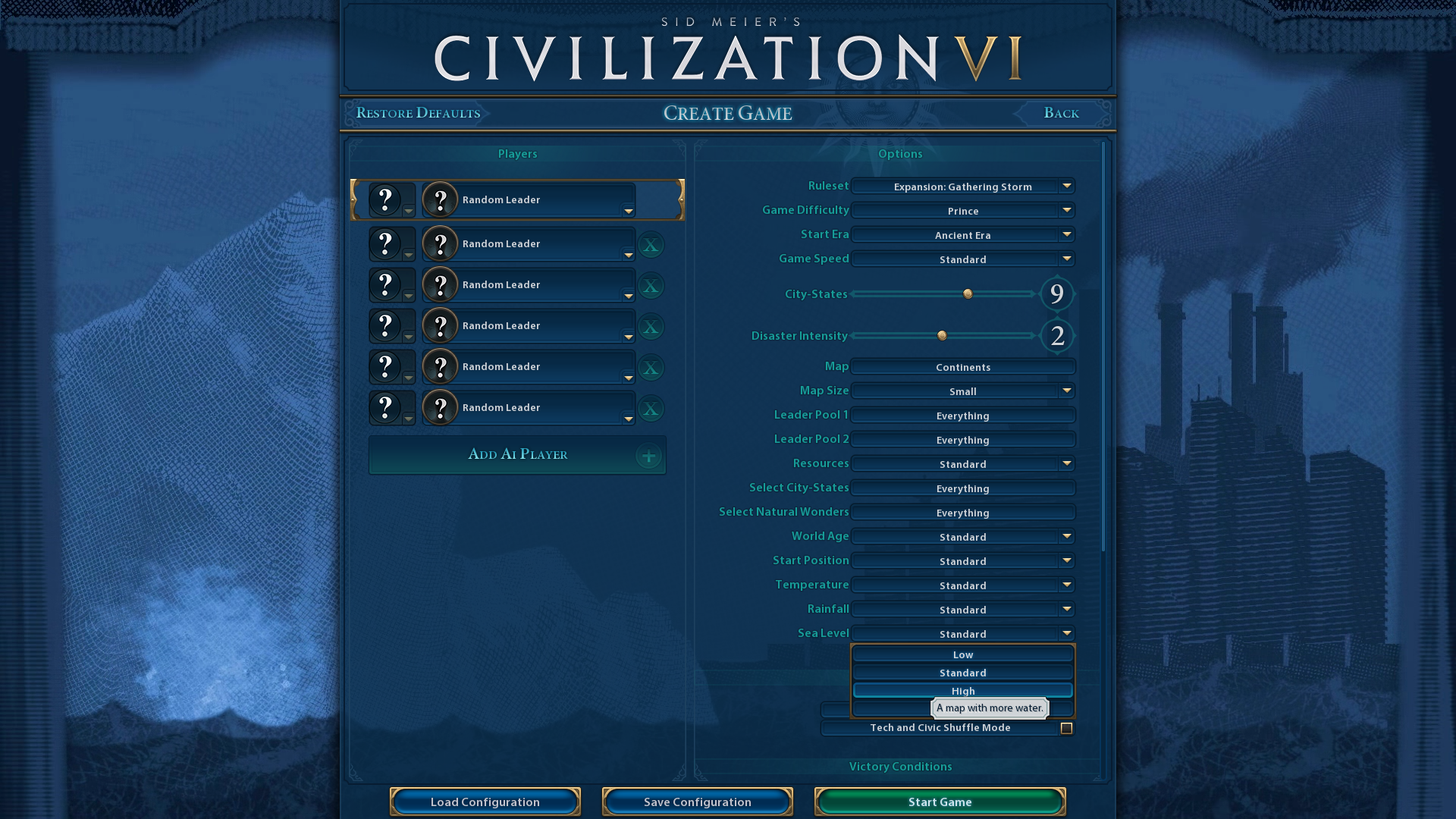
The Sea Level option enables you to configure the amount of land and water on the map. For a naval/coastal-oriented civilization, select High for the Sea Level setting. Those players who choose more land-based civilizations, with strong non-naval unique units, should consider selecting the Low Sea Level option.
Configure Natural Wonders
Natural wonders are unique terrain features on Civilization 6 maps that provide increased tile yields for cities. By default, all natural wonders are set to appear on maps. The game then randomly chooses which ones to generate, with some excluded.
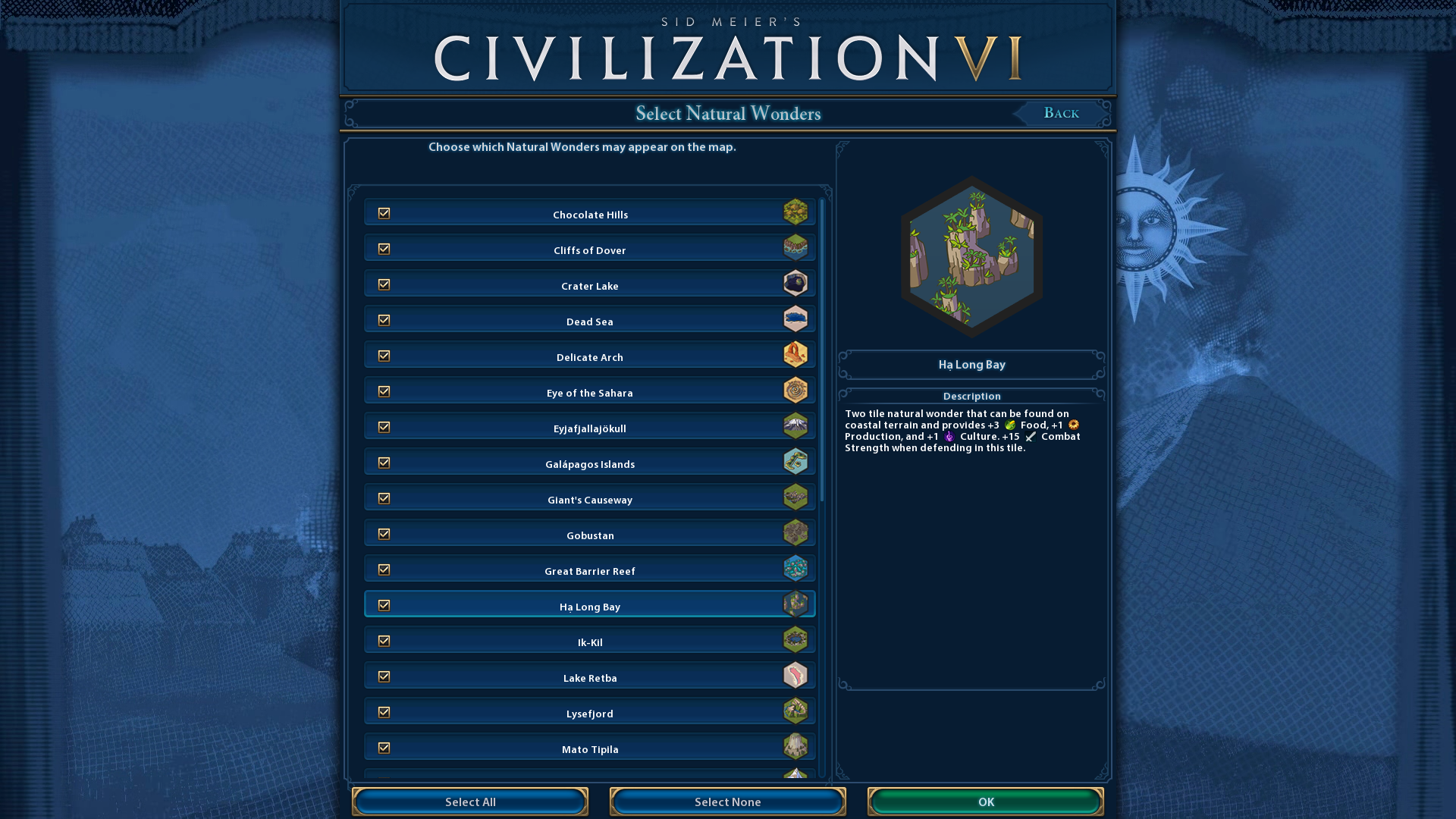
However, you can set poorer natural wonders to be excluded, so the better ones will more likely appear. To do so, click Advanced Settings and the Choose Natural Wonders setting. Then, unselect the selected checkboxes to exclude their natural wonders from the map.
Configure City-States
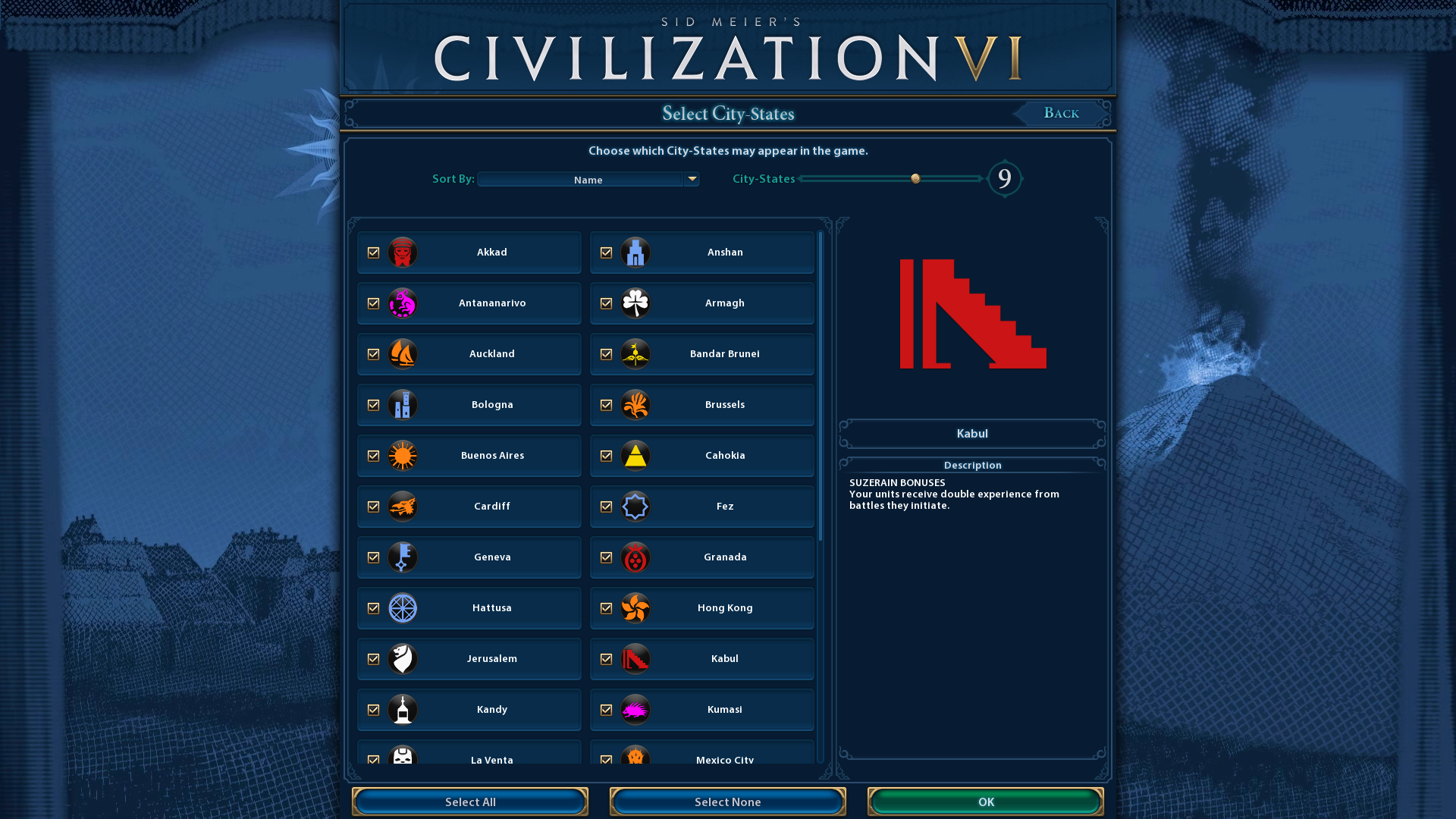
City-State envoys, which increase yields, and suzerain bonuses are significant for securing scientific and cultural victories. So, you should configure the map to include more cultural, scientific, and industrial city-states that will help you win space races or dominate tourism. Firstly, you can simply increase the number of city-states the map includes by dragging the slider for the City-States bar within advanced settings to the right.
However, it’s better to directly configure which city-states appear in the game. To do that, click on the Select City-States option within advanced settings. Then, unselect all the checkboxes for city-states you don’t want on the map to ensure they don’t appear. For example, military and religious city-states aren’t as important for space races as industrial and scientific ones. So, it would make sense to exclude all (or most) military and religious city-states to ensure more industrial and scientific ones appear on the map if you’re planning on winning a space race.
Disable Barbarians if You Prefer
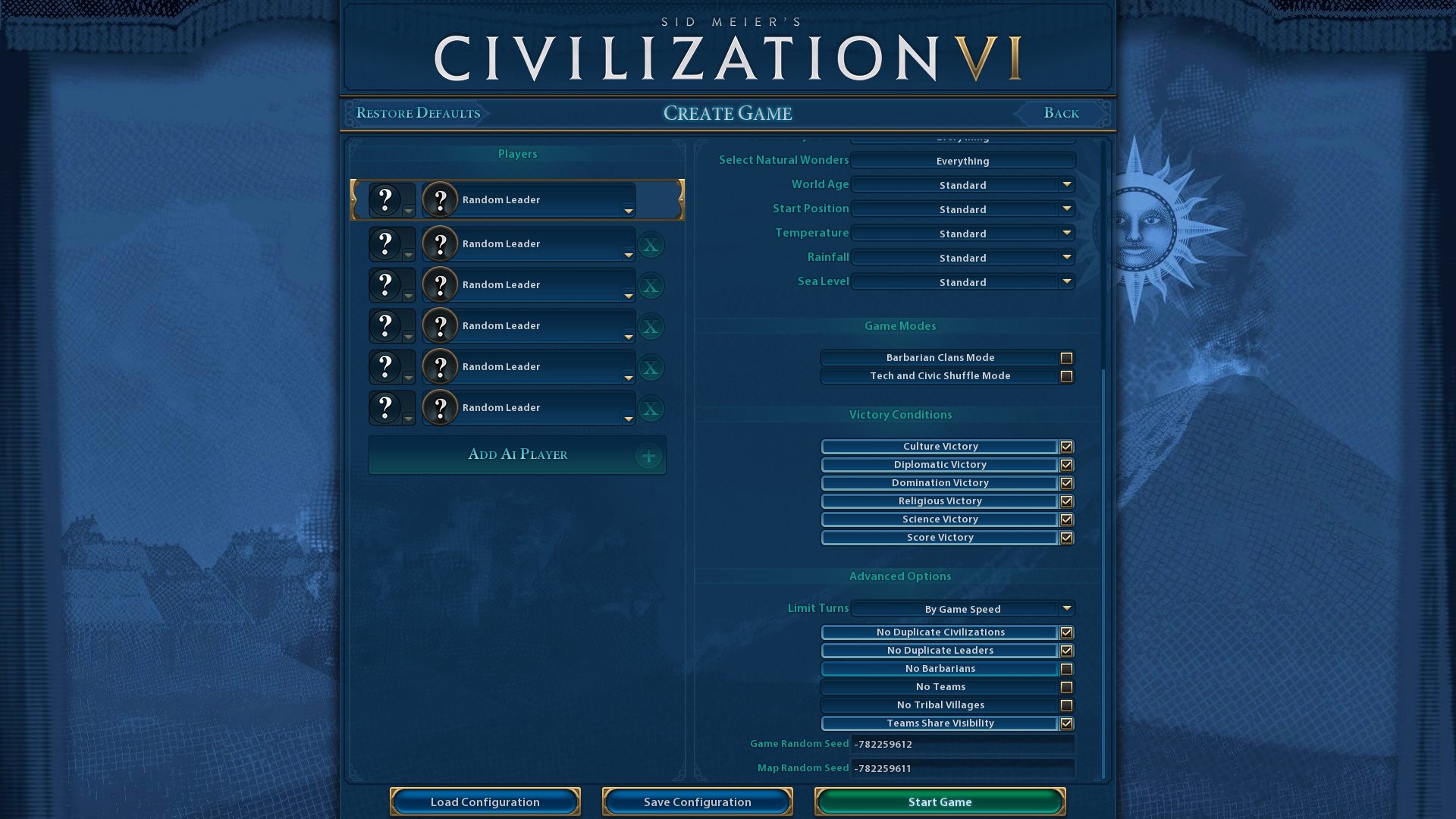
Barbarians can be a nuisance in Civilization 6 as they’ll attack your cities and units throughout the game. So, disabling barbarians makes Civ 6 a bit easier. If you prefer less challenge, select the No Barbarians option within advanced settings. Selecting that setting will make peaceful expansion easier because you won’t need to clear out any barbarian encampments that get in your way. When I disabled barbarians for one game, I secured my fastest ever victory, which can’t be a coincidence.
So, there’s much more to configuring Civilization 6 maps for games than merely adjusting the basic type and size settings. Try customizing the map to suit your civilization and specific victory condition by tweaking the advanced settings as suggested above. Then, you can reap the benefits from playing on a map that’s ideally set up for your civilization and preferred victory path.








You must be logged in to post a comment Login