





















Just like any other competitive game, Free Fire constantly refreshes its settings with new configurations, edited layouts, and performance tweaks. While not every setting truly matters, a few of them can completely change your gameplay when adjusted correctly.
These crucial settings need to be meticulously tuned to align with your playstyle, aim method, and even your phone’s performance.
In this guide, we’ll cover the best Free Fire settings most players don’t tweak properly, along with hidden “secret” settings that improve aim and movement—and a little-known app from the Google Play Store that offers powerful headshot tips and optimization tools.
Free Fire settings you’re using wrong and how to tweak them correctly
4. Gloo Wall Smart Throw
Gloo Wall Smart Throw is not recommended for advanced players or those using three to four fingers. However, for newer players, this setting significantly increases gloo wall deployment speed.
When enabled, the gloo wall is placed immediately after tapping the gloo wall button, instead of requiring an additional fire-button press. This makes defensive plays faster and more reliable for beginners.
3. Graphics Settings (Smooth, Standard, Ultra, Max)
While not the most critical setting, graphics still play an important role in performance and stability.
- Low-end devices: Smooth or Standard (recommended)
- Mid to high-end devices: Any option works, but Standard offers the best balance
Using Ultra or Max on weaker phones can cause lag or crashes, often costing you fights that were otherwise winnable.
2. Sensitivity
In Free Fire, only two things truly define accuracy: your drag style (aim method) and sensitivity. Among the two, sensitivity is the most important.
No matter how good your movement, device, or gameplay is, poor sensitivity settings will always limit your accuracy.
While personal tuning is ideal, the following values are widely considered a solid universal baseline:
- General: 165
- Red Dot: 151
- 2x Scope: 200
- 4x Scope: 172
- Sniper / 8x Scope: 105
- Free Look: 171
1. HUD (Heads-Up Display)
The HUD is the most important setting in Free Fire. A poorly designed HUD can make even experienced players look like beginners.
Copying a creator’s HUD doesn’t always work, because your grip style and finger reach directly affect how effective a layout feels. A well-optimized HUD improves reaction time, drag distance, and movement flow.
This setting alone can either unlock your skill ceiling—or completely hold you back.
Secret Free Fire Settings Most Players Won’t Tell You
While sensitivity and HUD are essential, they aren’t enough to achieve the high headshot rates and smooth freestyle movement seen in top creators’ videos.
Here are the missing components most players overlook.
1. Fire Button Size & Position (The “Drag Sweet Spot”)
Having a fire button is normal—but its size and placement determine your headshot potential.
A smaller fire button increases vertical drag space, making one-tap headshots easier at close range while still remaining effective at long range.
- Recommended size: 35% for freestyle or fast players
- Alternative: 40–50% if 35% feels too small
- Position: Slightly lower than the middle-right of the screen
This placement gives your thumb more runway for upward flicks.
2. Screen Rotation, DPI & Sensitivity Scaling
If your aim feels “heavy” even at high sensitivity, the issue may be outside the game.
Many advanced players adjust their phone’s Minimum Width (DPI) through Android Developer Options.
- Recommended DPI: 400–500
- Result: Faster screen response to small movements
- Benefit: Shorter swipes for faster turns
Warning: Avoid exceeding 700 DPI, as it may shrink UI elements or cause system instability.
3. Run Mode
Set Run Mode to Tap. This improves movement control and reduces accidental sprinting during fights.
4. Crosshair Type
Set Crosshair Type to Classic for cleaner visuals and better drag alignment.
5. Enemy Outline
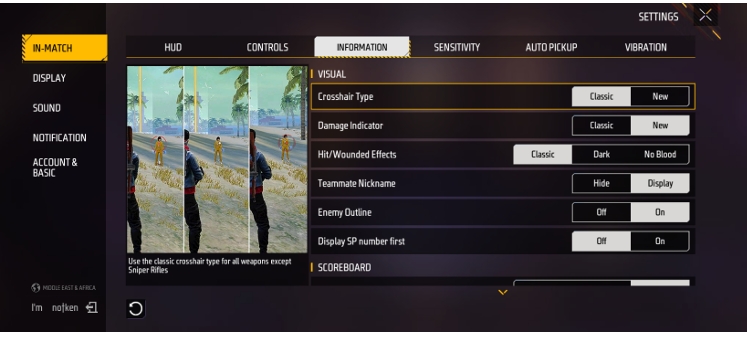
Ensure Enemy Outline is turned ON. It significantly improves enemy visibility at long distances.
Bonus: A Secret App Many Pros Quietly Use
One highly underrated tool available on the Google Play Store is HyperSen. While it is a premium app, it is very affordable and highly useful.
This is not an advertisement—just a recommendation based on real usage.
- Gloo wall placement techniques
- Scope and headshot tricks
- 2-finger, 3-finger, and 4-finger HUD layouts
- Aim optimization tips and drills
Many players report noticeable improvements in accuracy after consistent use.
Final Thoughts
Success in Free Fire does not come from luck or hidden tricks; it comes from how well your settings match your gameplay.
While DPI adjustments and helper apps can improve responsiveness, consistent practice matters more than anything else.
Test your settings in training drills, experiment with fire button sizes until one feels natural, and give your muscle memory time to adapt. Improvement in Free Fire is gradual but once it clicks the difference is undeniable.













You must be logged in to post a comment Login